SNACBox
Simple Network Access Control Box (SNACBox) is a home gateway that provides child-safe internet access, protects devices, and restricts access based on the user’s devices. SNACBox aims to help parents and guardians create a child-safe internet experience.
Open Source Components
OpenWRT
- https://openwrt.org/
The OpenWrt Project is a Linux operating system for embedded devices that is used to build a router.
AdguardHome
- https://github.com/AdguardTeam/AdGuardHome
Free and open-source, powerful network-wide ads & trackers blocking DNS server.
Docker
- https://www.docker.com/community/open-source/
Docker is built for developers, by developers. It enables team collaboration, efficient packaging, and scalable distribution of open-source projects, with a focus on trust and security.
e2Guardian
- https://github.com/e2guardian/e2guardian
e2guardian is a content-filtering proxy that can work in explicit and transparent proxy mode or as an ICAP server.
Unbound
- https://www.nlnetlabs.nl/projects/unbound/about/
Unbound is a validating, recursive, caching DNS resolver.
PHP
- https://www.php.net/
A popular general-purpose scripting language, especially suited to web development. Fast, flexible and pragmatic, PHP powers everything from your blog to the most popular websites in the world.
Functionality
How to Configure SNACBox
New OpenWRT Setup
Openwrt 25.12+ Supported Firmware
Waveshare Dual Gigabit CM4 Board
Waveshare USB Gigabit Eth Hat for Pi 4B
Click and download the firmware
Flash SD Card
Get an SD card (minimum 16 GB) < br>
Download and install Raspberry Pi Imager https://www.raspberrypi.com/software/
Insert the SD card into a computer or adapter
Run Raspberry Pi Imager
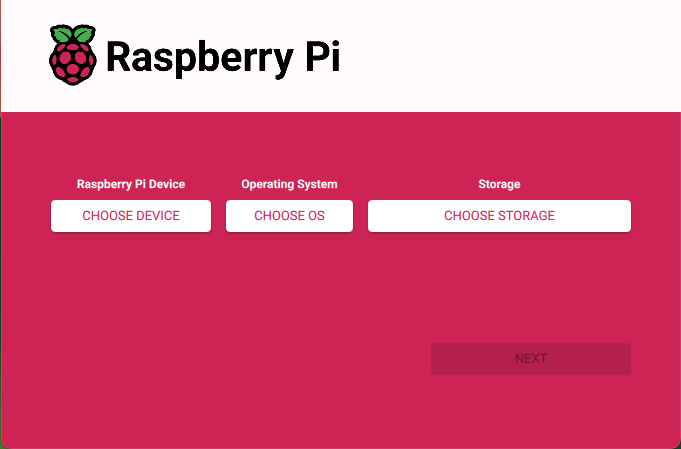
Click “Select Hardware”
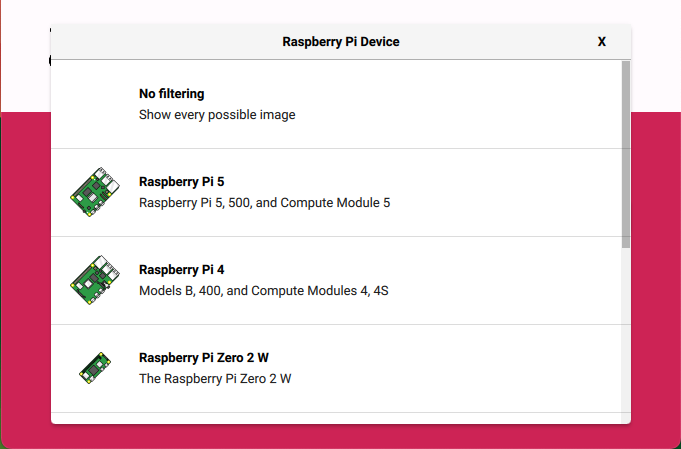
Choose Hardware
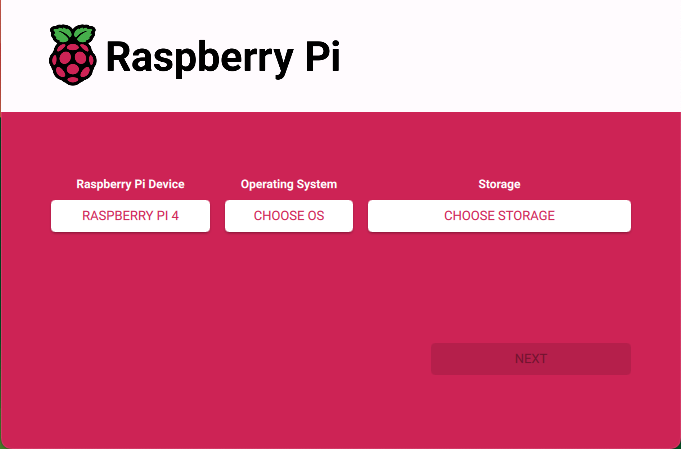
Click “Select OS”
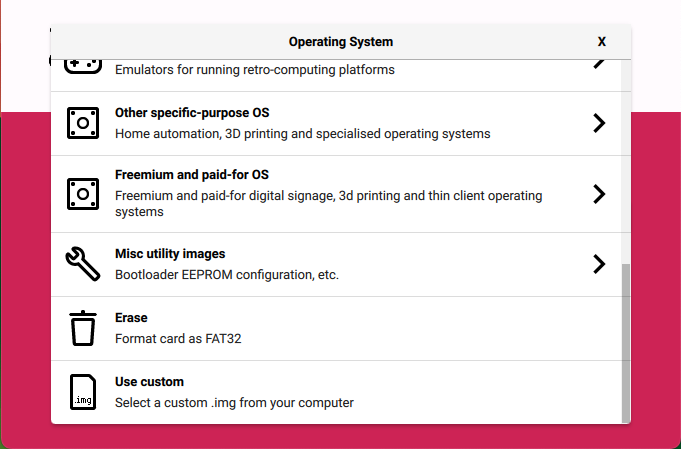
Choose “Custom Image”
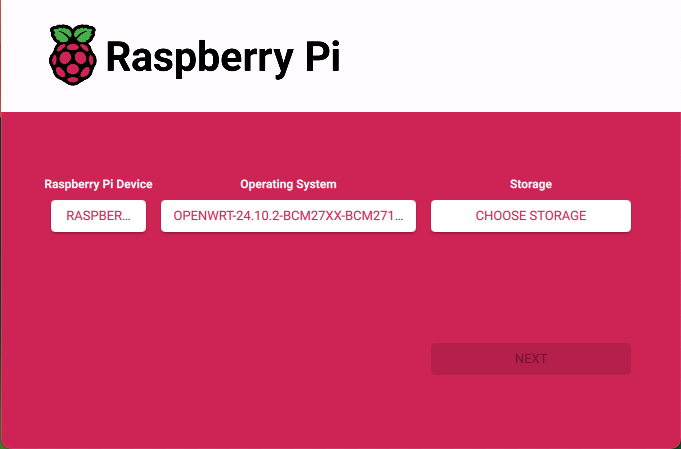
Click “Select Storage”
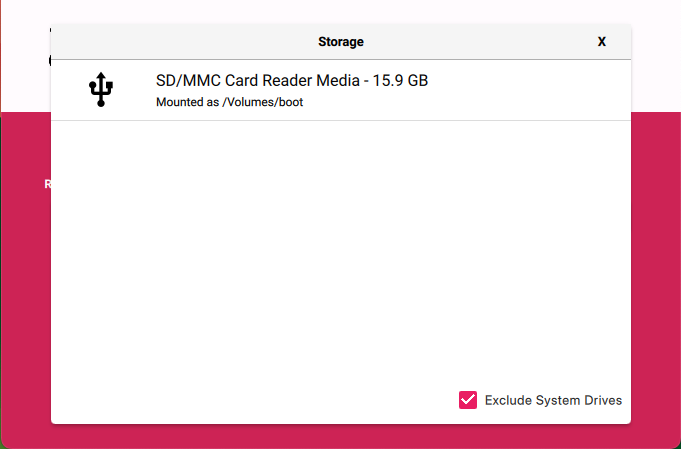
Choose SD Card
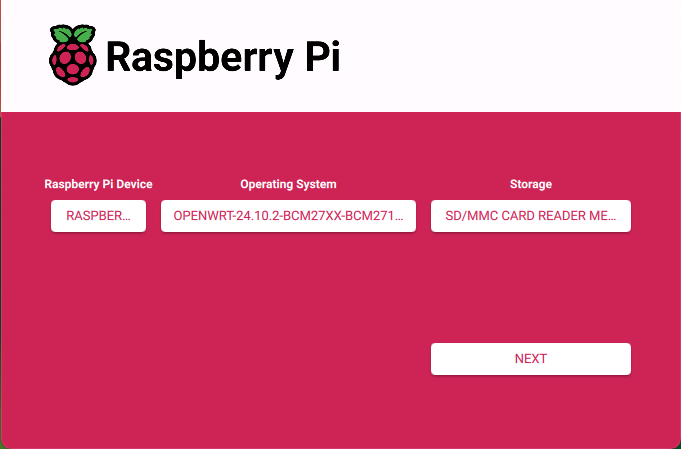
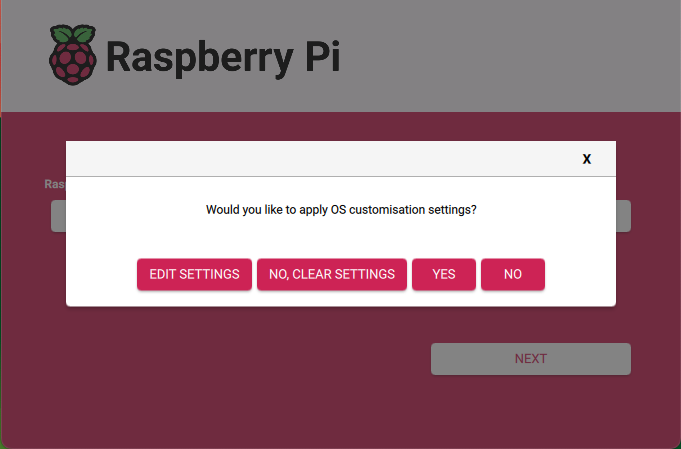
Click “No” to customise the OS
Click “Complete”
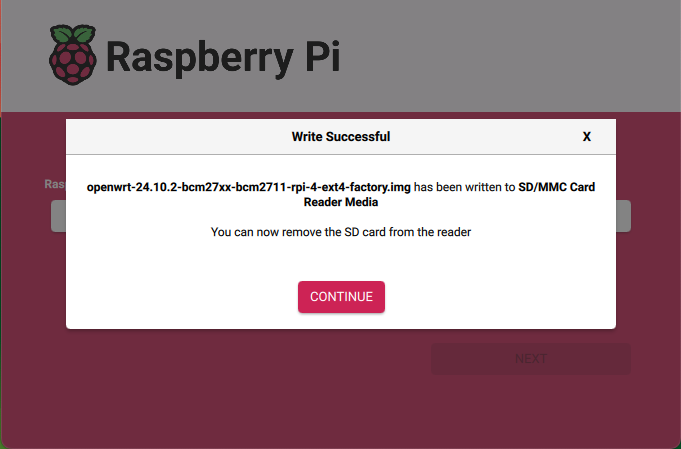
The SD card is now almost ready for use in the device. < br>
Make sure your device is not connected to a network or power
Boot OpenWRT 25.12+
Insert the SD card into the device. < br>
Power on or boot the device. < br>
Connect the LAN port directly to a computer; the device will provide the computer with a new DHCP address. < br>
Open a web browser on the computer and enter http://192.168.1.1 to access OpenWRT
Configure OpenWRT Password
SSH to root@192.168.1.1
ssh root@192.168.1.1
SNACBox Installation
The SNACBox APK package is built for OpenWRT 25.12+.
This package create SNACBox using a clean, fresh OpenWRT install.
It is not recommended to run this package on an existing OpenWRT installation, as it will overwrite firewall, network and AdGuardHome configurations.
Test the network first:
nslookup downloads.openwrt.org
apk update
Download the package:
wget --no-check-certificate https://github.com/AKrawczyk/SNACBox/raw/refs/heads/main/software/luci-app-snacbox-1.0.0-r1.apk
Install SNACBox package and reboot
apk add --allow-untrusted luci-app-snacbox-1.0.0-r1.apk
reboot
clear
After the box reboots, log in to https://192.168.12.1 and ssh root@192.168.12.1 to verify and complete the configuration.
The SNACBox is almost ready to be installed on a Home Network Router and provide safe internet.
Before using the SNACBox, make sure you set the system password.
Set and Configure System Password
- Go to ‘System’ -> ‘Administration’ -> ‘Router Password’
2. Enter a new password
3. Press ‘Save’
4. Goto ‘Webguard’ -> ‘Web Access’ -> ‘Configuration’
5. Enter the newly set password in the ‘System Password’ field.
6. Press ‘Save & Apply’
SNACBox is ready to be set up for use on a home network.
Set up SNACBox on Home Network Router
Note: This setup currently requires simple IT skills.
Step 1
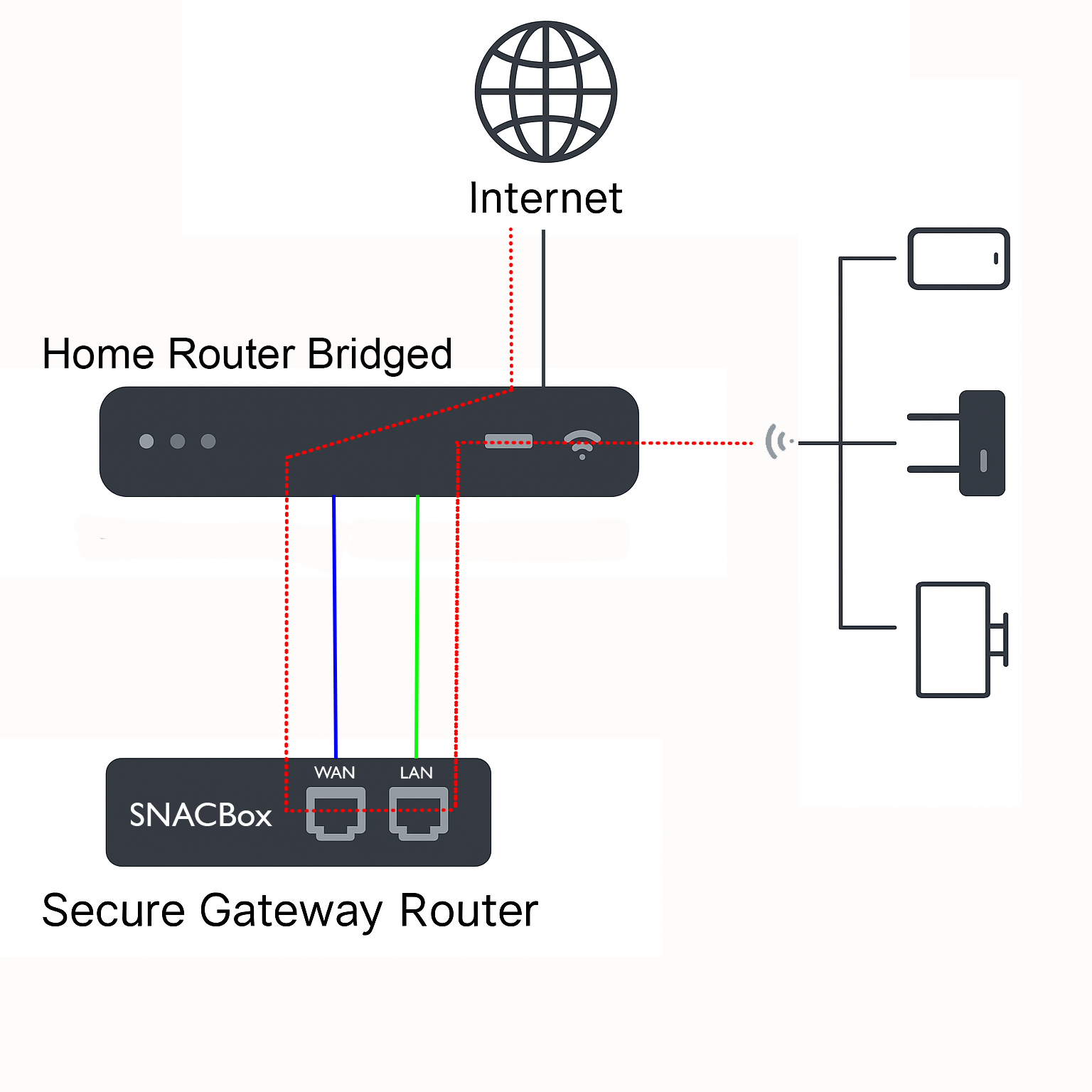
Connect SNACBox WAN port to Home Router
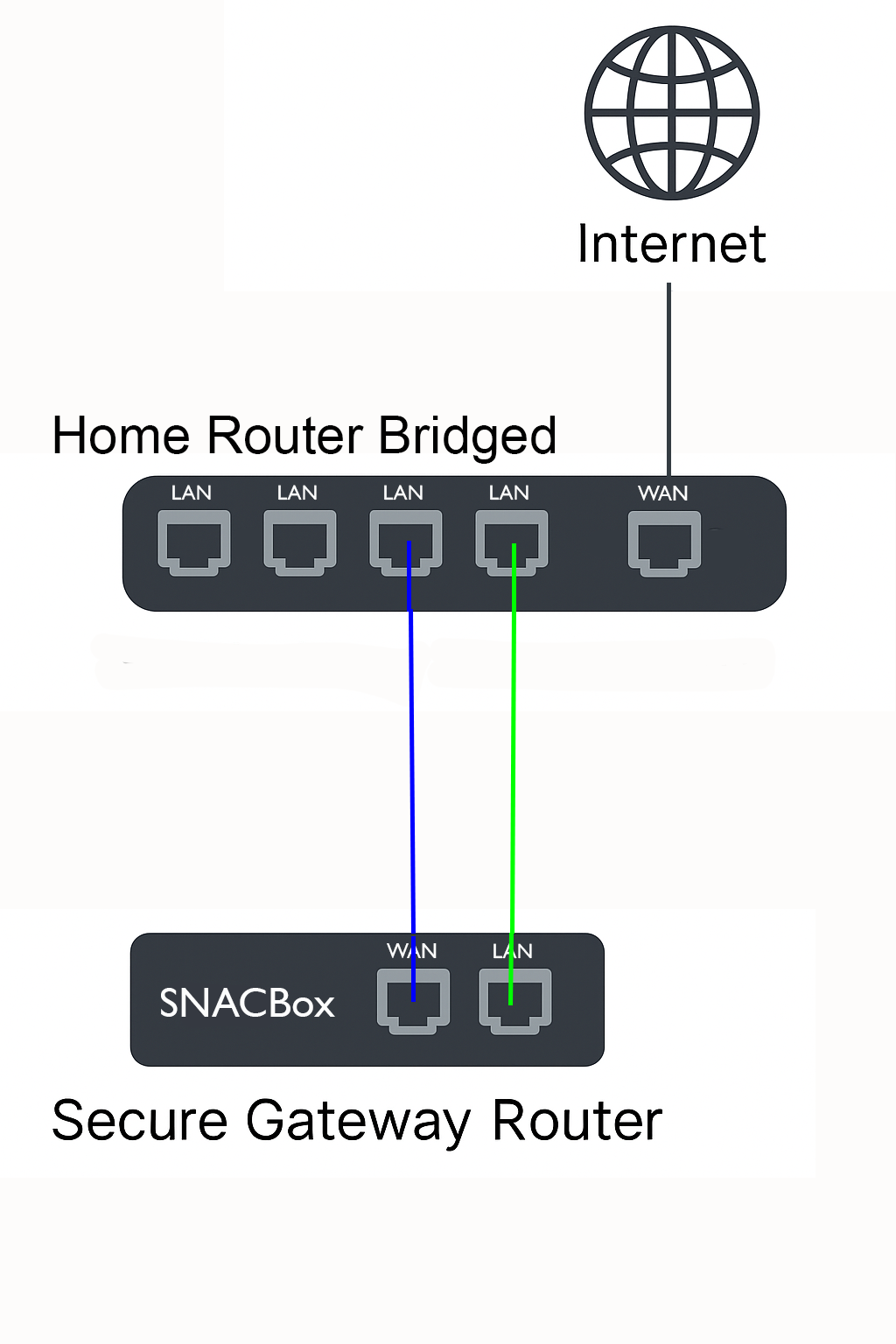
- Power on the SNACBox
2. Connect one of the Home Router’s network ports to the SNACBox WAN port
3. Connect the SNACBox LAN port to the USB Network Dongle’s network port
4. Connect the USB Network Dongle’s USB port to Laptop/Tablet/Smart Phone usb port
5. Browse to https://192.168.12.1
6. Login to SNACBox, User = root, Password = xxxxxx
Configure Static WAN IP
Go to Webguard -> Web Access
Select ‘Configure’
Click the button ‘Reset WAN’
Setup Admin USB Network Dongle
Go to Webguard -> Web Access
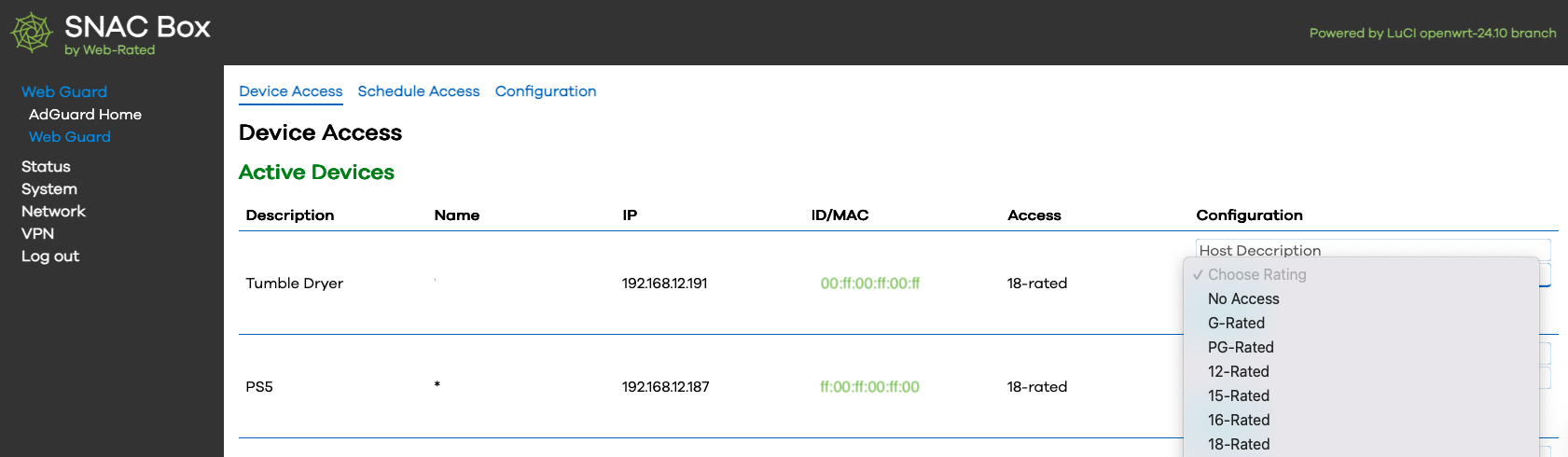
Select ‘Device Access’
Now set the Rating to ‘18-Rated’ for the admin USB network dongle
Enable SNACBox on Home Router
- Disconnect the USB Network Dongle from Laptop/Tablet/Smart Phone
2. Disconnect the SNACBox LAN port from the USB Network Dongle
3. Log in to the home router and disable DHCP
Note: Consult the Home Router supplier’s web page for information on how to do this.
Note: DNS configuration may be necessary if the Home Router is set to secure DNS.
4. Connect the SNACBox LAN port to the Home Router Network port.
Step 2
Set up admin devices
Connect at least two wireless devices (Computer, Tablet, Smart Phone) to Home WiFi
If you’re using a mobile device (iOS, macOS, or Android) make sure to configure the WiFi connection’s Private Wi-Fi Address to ‘Fixed’
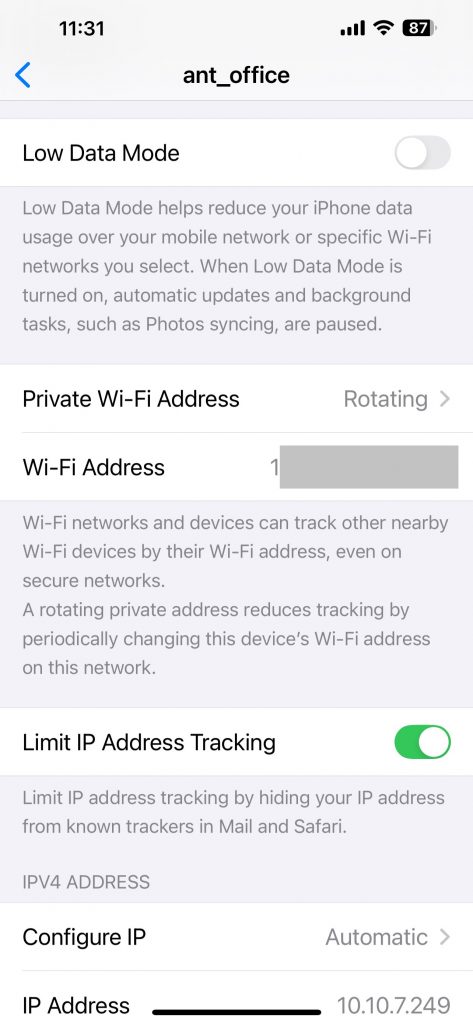
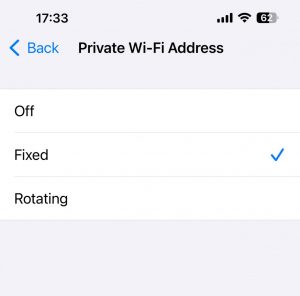
Note: These devices will automatically be enrolled into the ‘No Access’ rating. < br>
- Open a web browser and go to http://192.168.12.1
- Login to SNACBox, User = root, Password = xxxxxx
- Now set the Rating to ‘18-Rated’ for both admin devices
- Once the admin devices have been enabled, proceed to step 3 to enable security and set the time.
Step 3
Enable SNACBox security
Goto Webguard -> Web Access
Select ‘Configure’
Tick ‘Enable Enhanced Security’
Set Time
Click on ‘System -> System’
Find the ‘Timezone’ dropdown list
Select the correct timezone
Device Setup
Now everything should be set up, and all devices connected to the Home WiFi should be appearing in the ‘Device Access’ web interface. All devices will automatically be enrolled on the ‘No Access’ rating. < br> < br>
- Enable devices on the home network < br>
- https://192.168.12.1 -> Web Guard -> Web Access -> Device Access
- All devices trying to access the Home WiFi will have a ‘No Access’ rating automatically applied to them, but will have a ‘Captive Portal’ webpage appear showing their IP address.
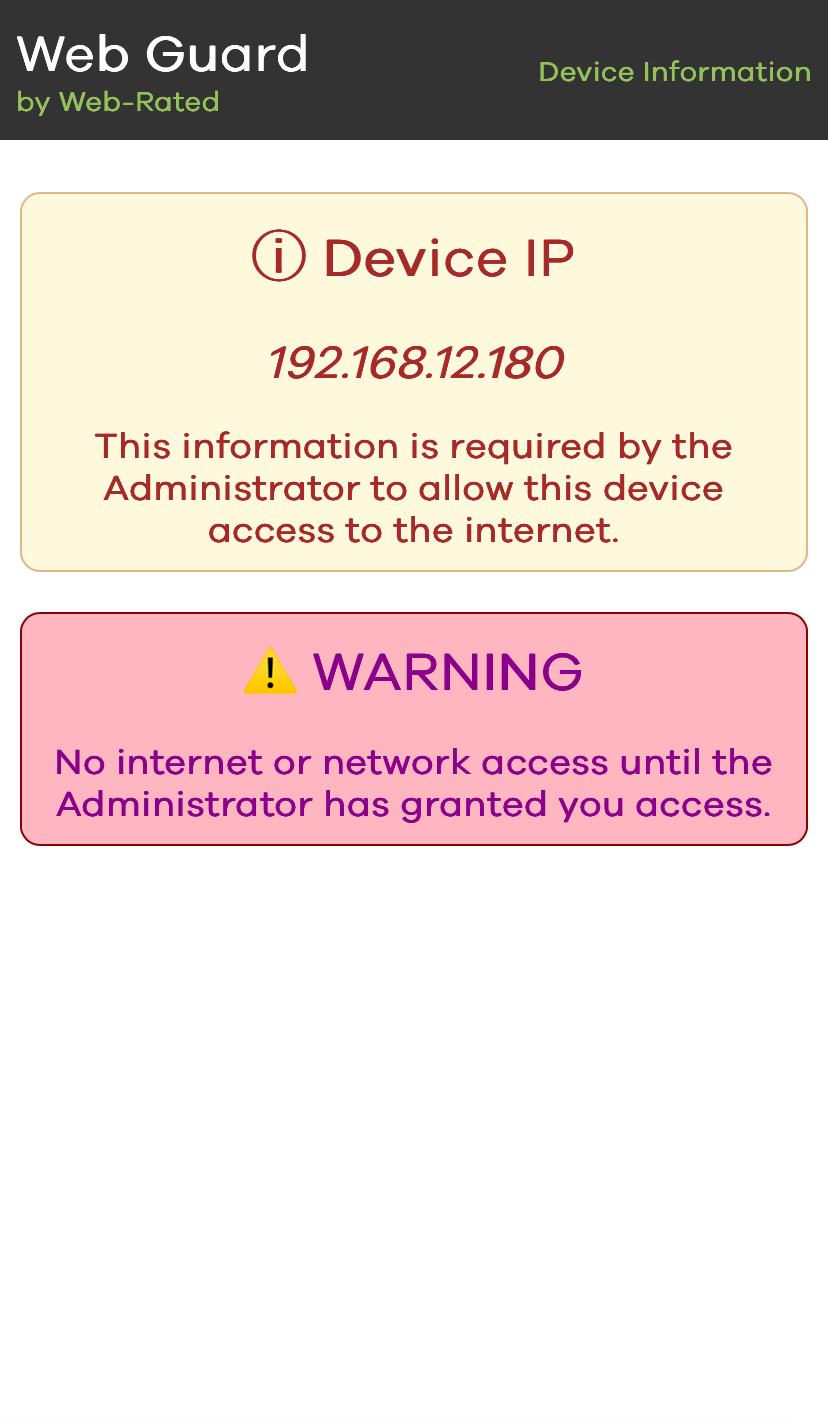
- Now find that device on the list of devices in ‘Device Access’ and assign it the necessary access rights (G, PG, 12, 15, 16 or 18).
The PDF contains detailed information regarding age rated filter configuration SNACBox Age Rated Filters.pdf